Dienstag, 8. März 2011

TradeSkillMaster Guide - Must have Auctioneering Addon

Posting this for my friend who created the guide over at Trading with Zoxy. I just compiled all his posts into one guide.


What is TradeSkillMaster (TSM)?
TradeSkillMaster is a MODULE BASED system to help both NEW Auctioneers and the MOST ELITE AUCTION GOBLINS manage everything related to the Auction House! Our goal is to work hand-in-hand with our community to develop an all-inclusive suite of modules that, when used together, follows our users through every single auction and crafting related function, making them as much gold in as automated of an environment as possible while still following blizz Terms of Service very closely.

You can read more about TSM over at it's FAQ

Index:
Section 1 Auctioning module
  • Setting up Groups
  • AH Posting ,Cancelling and Shopping
Section 2 The Crafting Module
  • General Settings
  • Crafting Settings
  • The Craft Queue
Section 3 Auto Mail module
  • Auto Mail

Section 1 Auctioning module - Setting up the groups

Welcome to the First Part of the Guide to TradeSkillMaster - Auctioning Setting up groups for Sale

TSM Auctioning Function for Setting up Groups is Pretty much the same as APM , if you are currently using APM then when you log in with TSM installed you will get the Below message . This will then Move your current groups over to TSM form APM - WARNING it will not setup the The Fallback or Thresholds Carry on reading for a Exploration on how to set it up.


Step 1 General Settings:
I normally leave these as they are set to ignore Auctions with more then 1000 items listed and to ignore the lowest if the price difference is more then 1000% . So leave these at there normal Settings.


Step 2 Post Settings:
I change the time for all my auctions to 24hrs: Also choose your post cap depending on the item your selling customise this.


Per auction - Stack Size if your selling mats then Set the size of stack you want to be selling.

Step 3 General Price Settings:
Undercut buy is set at 1c as standard and I see no reason to change it.


Bid Percent - This will allow you to change the Bid prices of your auction for when you list them.

Step 4 Minimum Price threshold:
This sets up the price that you will stop listing the items at.


Step 5 Maximum Price:
This is the fallback setting .Meaning If there are no other items on the ah then this is the price it will post at.


Step 6 Advanced Price Setting :
This is when you can choose to have your item posted at the Fallback , not at all at a custom value or at your threshold. I always set mine at the Fallback.


To add items to a group just select the Add/Remove tab and then click on the item.


Section 1 Auctioning module - Setting up the groups


Welcome to Part 2 of the TSM guide

I will now Explain which each of the buttons do
  • Auctioning Post
  • Auctioning Cancel
  • Auctioning Cancel All
  • Auctioning Status/config
  • AuctionDB Run Scan
  • Shopping General Buying
  • Shopping Milling/Disenchanting.Prospecting
  • Shopping Crafting Mats!
  • Shopping Dealfinder

Auctioning Post :
This is the Main button that you will be using to sell items in your groups that have been set up previously.

Before the item goes live it will display the information Displayed in the image , at this stage you can choose to Post Auction ,Skip Item or Stop Posting.


Auctioning Cancel :
When this button is pressed it does a scan of the AH and will then produce a list of all the items that you have been under cut on .

It will then give you the option to cancel Auction Skip Item or Stop Cancelling .


Auctioning Cancel All :
Cancel all give you the option to cancel Actions in Bulk Based on a couple of different Factors

  • Items matching: For example you could type 'Glyph of ' and it would select all Glyphs to canceled.
  • Cancel All Filter: You can filter by a Specific grup or By time left by typing into the Box. IT would then select all items with that Criteria to be cancelled.


Auctioning Status/config:
This runs a scan that Helps to Identify what items can be brought out to raise the price of he the groups you are managing . To access this once the scan has completed a Log Button will appear next to the TSM button click that and that is where the information will be.


The Config Button will take you to the Group Config page.


AuctionDB Run Scan:
There are two option here the first is the Get All Scan and the second is a smaller scan just focusing on professions.

The Get all will scan all items on the AH when the Profession Scan will just can the Trade goods and items made by and needed for that profession.


Shopping General Buying:
This is simply a search of the AH , the item must be spelled exact or it wont be found. You are able to input the number you want and also the maximum price

This will then produce the Result of the lowest priced item that you have searched for.


Shopping Milling/Disenchanting.Prospecting
In this Tab it allows you to search for items such as Herbs to mill , Items to DE and also and gems to Cut.


So for Milling as the example , You choose form the drop down and then it will Search all the Herbs in that produce it and then Give you the option to buy them .
It will also Record the amount of inks you have brought and the Average cost per ink.


Shopping Crafting Mats!
This is designed to work with the Crafting Queue Which i will go into Further detail in the next module.


From the list produced from the items you have queued in TSM Crafting module this will individually go through each item and select the cheapest on the AH for you .

You have the options to Buy and Skip each item.

Shopping Dealfinder:
This is the Snatch List - This allows you to setup a list of items that you want to quickly scan for .The Dealfinder allows you to set the mexium price when you add the item into the Deal finder .

Adding a item into Dealfinder _
Select the Configure Dealfinder List .You can then Add the item by either the Shift Clicking on a item or adding the item numberID ( this can be found on wow head).


When you have added the Item you then need to set the maximum price for the item . Then Select Add item and it will be added to the List .

Next run the DealFinder Scan and see what appears ,It will scan the Items in the AH window next to it so make sure you have it on browse so you can see what it is scanning .

Hope that makes it Clear on how to use the AH Functions of TSM
Let em know if you have any questions.


Section 2 The Crafting Module - General Settings

To Access the General Settings just press the Button that look like a Gem on the Right hand side of the TSM main window. This will then give you a option 3 Tabs Data, Craft management and Profiles.


Step 1 Price Settings:
Include Vellums in Costs - This is simple check box that allows you to include the cost when working out the profit .

Get Mat Prices and Get Craft Prices from this allows you to set your source for where you want the Material prices to come from Auctioneer -Appraiser, Auctioneer - Market Value, Auctioneer, Minimum Buyout, AuctionDB Market Value, AuctionDB - Minimum Buyout or Manual Entry.

Profit Deduction - This slider allowed you to set a percentage for profit Deduction if you set at 5% it would cover the AH Fees when calculating profit


Step 2 Inventory Settings:
This Box allows you to set up the Inventory setting choosing what Guilds and alts you can access stock from.

Addon to use for Alt Data - you can choose Gathering ( TSM Built in ) or Datastore.

Characters to Include and Guilds to include - Both have drop down boxes that allow you to tick which characters and Guild you want to have included for Mats for the Crating queue.


Step 3 General - Craft Management Window:
The First option is the Frame Scale so you can increase or Decrease the Size of the Crafting window.

Double Click Queue - This sets the number of item you want to add when using the Crafting window.


Step 4 Restock Queue Settings:
Include Items on AH when Restocking - If this tick box is checked then When you are restocking you will include items already listed on the AH in your Stock

Min Restock Quantity - Item that will be added to the restock Quantity EG if you wanted to make items in batches then having the number 10 here would only add 10 of the item when you need 10 rather then adding them once at a time.

Max Restock Quantity - This sets the maximum number of items to be in your craft queue for any one item type. Minimum Profit ( in %) or (in gold).

Filter out Items with Low Seen Count - This allows you to ignore items with Low Seen count and Select the source Either TSM_AuctionDB or Auctioneer and then Set a seen count filter.


Section 2 The Crafting Module - Crafting Settings

Before you start using the Crafting window you need to Set up what item you can craft and some additional Settings.

Step 1 - Profession Item Selection:
First you need to go into your profession and then Select which items you want to add to your crafting window , the easiest option is to enable all Crafts and I would recommend it the first time that you setup and look over what is profitable.

If you don't want a item to appear in your Crafting window leave the Check Box unchecked as in the image Below.


Step 2 - Additional Item Settings:
For each items it gives you the following options:
  • TSM _Auctioning Group to add too - This allows you to add the item to any of your existing Groups
  • Name of New Group to add item - This allows you to create a new Group
  • Override Max restock- This will override the Maximum restock level for this item
  • Override Min Restock -This will override the Minimum Restock level for this item
  • Ignore Seen Count Filter - Will ignore the Seen count for this item
  • Don't Queue this item -If you don't want this item to be queued( wont make item)
I go into more detail into the what the Settings mean in the general settings post.

You will need to go through Each item and Item Group to set up them all up.


Step 3 - Material Costs:
For each of the Crafts there is a page after the Item groups that allows you to set the Prices of the Base Material Costs, if you want to change any of the prices just check the box and edit the price .


Section 2 The Crafting Module - The Craft Queue


The Above image is of the Crafting window in TSM to open it just click the Button on top of the normal Crafting window.


Once open you will then be able to select from the list what items you want to look at below is the information that will be displayed when you.

  • Name - This is the Item name that can be made
  • AH/Bags/Bank/Alts - This shows how many of that item you have and its location
  • Market Value - Current Market Value ( Sale Price )
  • Profit - How much profit is made by making the item


How to use the Restock and On hand Queue:
Restock Queue If you have followed the previous Sections of the Guide then you have already setup your Setting for the Restock Queue .To use the queue it very simple Just press the Restock queue button and the list will then Populate .This is the same for the On-Hand Queue But will only use items in your current Bags.


Once you have Populated the Queue it will appear in a List like this , i have Set my restock amount at 3 items the colours have different meaning
  • Green - Have items on hand to make
  • Yellow - Have mats on a alt
  • Red - Don't have mats


This will also then give you a break down of the Mats that are required to make the items working with the same colour coding
  • Green - Have items on hand to make
  • Yellow - Have mats on a alt
  • Red - Don't have mats


Then once you are ready to craft just press the Craft next button this will then process your list of items that you can make.


For any items that you didn't have they will appear in the Queue in the AH panel under Buy Crafting Mats .So please Check out this section of the Guide if you haven't read it yet.


Section 3 Automail Module


Step 1 - Setting Up Auto mailing:
Click the mail Icon on the Right had side of the mail TSM Page.

Then where it says Player name write in the name of the Character ( make sure its Spelt Correctly) that you want to be receiving the mail.

Then Over in the Options Select the Character you want to Setup .


Step 2 - Adding the Items:
This is Just like adding items To the AH groups for Selling , If the item is in your bags then you can just click on Add and it will move the item over .

You also can add a item group over to be selected to a character by clicking the Add button .

To Remove a item or Group from the list just click on remove.


Step 3 Sending:
Once you are ready to send just open the mail box and Click the Red bar at the Top and it will start sending the mails out to your chosen Characters.


AAAND that's it for now. Sorry for the wall of text but it was the only way
Zoxy will be adding a Tips and Tricks section soon but its not out yet, you can keep checking here for it though.

Finally, you can download the addon from Curse.

Make gold as a GM

I did a quick check havnt seen anything on here but this is how I made gold being a GM on one of my bot accounts.

1. Pick a catchy guild name maybe something to do with Cataclysm. "Leveling in Cat" "Cataclysmic Levelers" etc.
2. Buy 1-2 bank tabs.
3. Set the ranks of the guild so there are only 2.
4. Set the ranks so they can invite.
5. Put something in the motd about how everyone is equal and can invite to the guild etc.
6. http://www.mmowned.com/forums/world-...d-inviter.html ([Addon] RapeDotty - Mass Unguilded Inviter) mass invite everyone up to level 80 or maybe even 83 depending how much time you want to spend.

Ok now at this point there are different routes you can take what I like to do because im lazy is just once a day or whatever check what is deposited into the bank. Take what sells on the AH and sell it .

Now before you can give me any kind of crap go try it. I have 5 guilds on 1 account levels 14-17 with over 300 members each I actually have to delete inactives on the lvl 17 guild. I make 10% of whatever anyone loots and if anyone asks me what happens to the items I say oh Xxxxxx asked for it for yyyyyyy.

When people get into the zones where you bot (if you bot) which should be 83+ just say gratz on getting through or w/e and promote them out of the guild.

If people pm you say you turn chat off while you farm with prat because your ex gf bothers you.

My level 14 guild I rarely log into at least for botting mainly its a profession toon and the guild has downed some cat raid bosses lol. I have an offer from one of the original people in it to buy the guild for a decent chunk of change.

Making the 5% and 10% does take a while however selling herbs and other stuff out of the gbank does not.

How to Turn 500g into 20k+ Gold

This is a fascinating market that has been around since the start of the Darkmoon Faire. I only learned about it a couple months back when a user ( duck ) from the consortium forums posted it. I simply love making gold with this method.

You can make thousands of gold from this method and you're only having to invest a couple thousand. Last time I did this method I put in roughly 500g and walked out with about 20,000g in loot from patterns/greens. After everything sold I was sitting on a nice hefty pile of 21,500g.

The way the method works is you buy Dense Stone, use a blacksmith ( or your own ) to turn that into Dense Grinding Stone which you will then turn that in into Kerri Hicks who takes 8 Dense Grinding Stones for 20 Darkmoon Faire Tickets. You then turn those tickets in for bags that can have varied loot but most importantly a ton of rare & expensive patterns.

There are three different bags that you can turn in the tickets in for, I'll list them below and their noteable loots.

Minor Darkmoon Prize - Item - World of Warcraft [ 5 Tickets ]
Razor's Edge - Item - World of Warcraft
Feet of the Lynx - Item - World of Warcraft
Ranger Bow - Item - World of Warcraft
Blackfang - Item - World of Warcraft
Rakzur Club - Item - World of Warcraft
Sentry Cloak - Item - World of Warcraft

Lesser Darkmoon Prize - Item - World of Warcraft [ 12 Tickets ]
Plans: Mithril Shield Spike - Item - World of Warcraft
Pattern: Guardian Belt - Item - World of Warcraft
Schematic: Craftsman's Monocle - Item - World of Warcraft
Pattern: Comfortable Leather Hat - Item - World of Warcraft
Midnight Mace - Item - World of Warcraft
Black Duskwood Staff - Item - World of Warcraft

Greater Darkmoon Prize - Item - World of Warcraft [ 40 Tickets ]
Pattern: Mooncloth Leggings - Item - World of Warcraft
Schematic: Sniper Scope - Item - World of Warcraft
Plans: Radiant Belt - Item - World of Warcraft
Plans: Dawnbringer Shoulders - Item - World of Warcraft
Six Demon Bag - Item - World of Warcraft
Schematic: Lifelike Mechanical Toad - Item - World of Warcraft
Plans: Whitesoul Helm - Item - World of Warcraft
Formula: Enchant Gloves - Riding Skill - Item - World of Warcraft
Pattern: Star Belt - Item - World of Warcraft

When opening the bags you'll receive a ton of greens that you can sell anywhere from 10-25g ( I sell all of mine at 25g/ea and relist every 48 hours.. I rarely get any of them back unsold ). By selling the green you're actually paying for the price of the Dense Stone which is just simply great, it makes the rare patterns/rare gear 100% profit.

I suggest you guys go try this out, it's an easy way to turn 500g into 10k+ gold, even more depending if you get a rare pattern worth 5-10k+. What do you have to risk? Go ahead an try it out!

Farming the AH, Fastest Way to Get Rich

Many people are looking for good spots/things to farm. This will never change, you don't have to be a certain level/class/etc.

Things Required/Suggested:
- A decent amount of gold to get started with. I would suggest 5k (any amount will work but the more you have, the more expensive investments you can make and more investments at a time)
-Auctioneer Addon (with a decent scan or two to see the "good" deals at the top of the page) This will let you browse the retard auctions quickly for the picking.
-TUJ Addon (The Undermine Journal - This is your greatest asset. Go to The Undermine Journal click on your realm/faction, Go to "SITE" along the top banner then click on WoW Addon.) This will tell you the true market price of items (better than auctioneer) and the reagent price to create them.
-Postal Addon This will let you open all your mail automatically, absolutely needed when going through hundreds of auctions a day.
-My Sales Addon This will tell you who bought your auctions, and how much they have spent on you. It is great for common items if you want to cut out the AH and start doing private deals.

Finding Great Deals
There are many people are stupid/tired/drunk/have typos when they post their auctions and this will be your greatest profit.
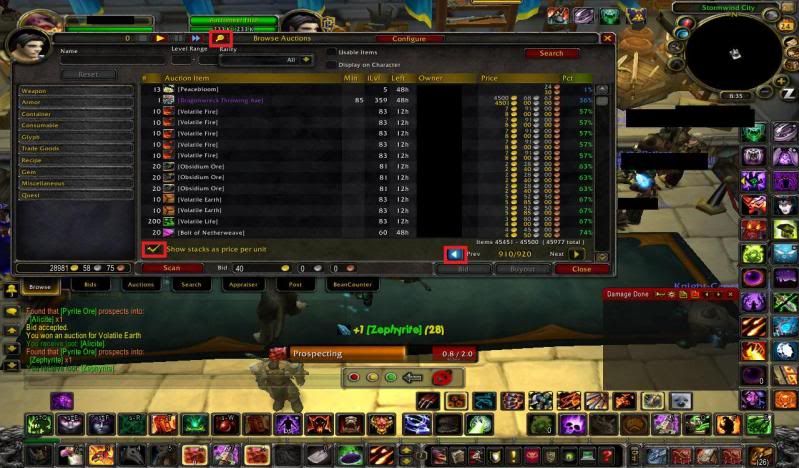
Go to the Auction House. Make sure you have a scan or two already so you can just look at the top of each page rather than scrolling down through each one checking prices. Click the magnifying glass at the top of the window. This will bring you to the newest page of auctions. Check "Show stacks as price per unit" This will show the price of each item in a stack so you can start to memorize how much each item goes for and when it's a good time to snatch it. Then click the "Pct" column so it shows the good deals at the top.

Now start browsing through the latest pages. Hover over item icons if you're unsure and your TUJ addon will tell you the current market price. If it's a good deal, Buy it. Click the back arrow to browse through the other fairly recent auctions.
Sometimes auctioneer will screw up and bring you to the first page of auctions, Browse through the first page or 2 and bid on any items that are low. These auctions will be ending within 30m, sometimes you can find a good deal. Once you're done click the magnifying glass again so it's highlighted, and it will bring you to the most recent pages.


WARNINGS: Diversity is key, Do Not Buy a bunch of one item unless you know you can get rid of them, otherwise you will be stuck with them for a while. Post them off a few a time, otherwise you will flood the market and get undercut.
The auction house takes a 5% cut, and you have to pay a deposit when you post items, if it doesn't sell you will lose your deposit.
I suggest you stay away from the lvl 85 darkmoon cards/trinkets and 85 boe epics. Their prices are declining fast and it's a suicide market to invest into, Unless you can get it for a steal and you know you'll be able to sell it for a profit, but it will be tough most of the time.

Retrieving Your Items

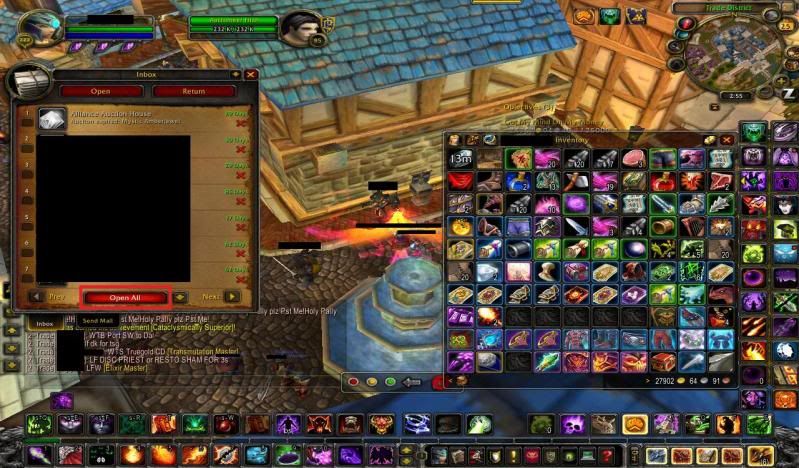
Go to the mailbox, make sure you have postal installed, and click "Open All" to retrieve all your items/money. It only handles 50 messages at a time, so after you collect your 50, wait 15-60 sec then go back to the mailbox to get the next set of messages.


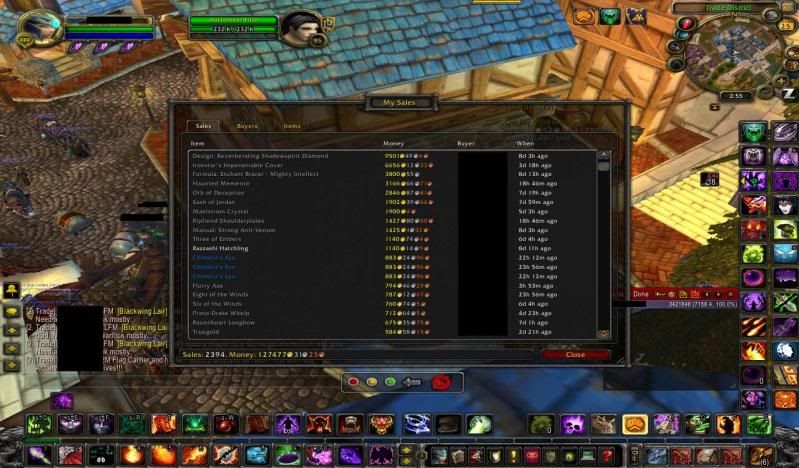
If you have My Sales installed, you can look at all your auctions sold since downloading it and see who has bought what from you. If someone buys alot of an item, whisper them or wtite a letter to work out a private deal so you can cut out the AH (which takes 5% profit) It's also great for keeping track of how much money you have made. I installed it about a week ago and so far have sold 127k worth of auctions.


Selling Your Crap
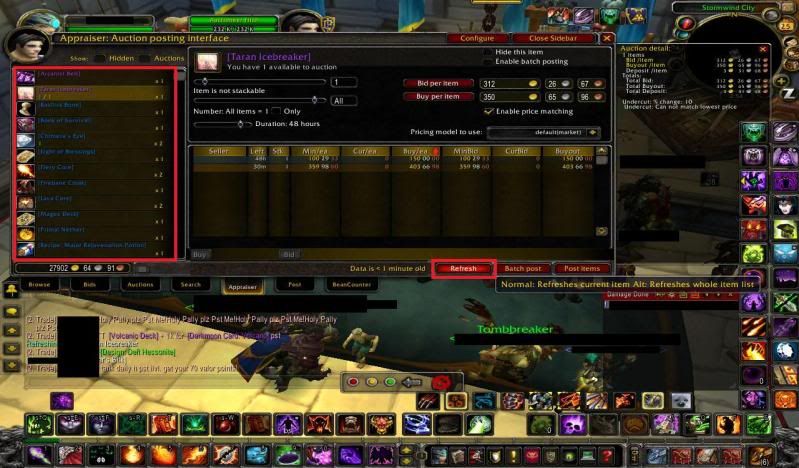
Go to the Auction House, and click on the Appraiser tab at the bottom. This will pull up a page with all the items in your inventory. Click on the item you want to sell and hit the refresh button at the bottom. This will scan the AH for all the same items and show them. Click "Buy/ea" until it shows a red arrow pointing up. This will list all the other auctions with the cheapest buyout first. Price your item (If it's profitable) for 1 silver less than the next one, as long as it's the cheapest, someone will buy it. You can price the bid for 1 silver less than their lowest as well (this will show up first for people without auctioneer installed) Do this with each item, Make sure to hit refresh each time to see the current prices, If there's some cheap ones be sure to buy them (But don't go overboard)


Many times you will go through alot of items and forget what you paid for them, just click the Bean Counter tab at the bottom and it will show you what you paid and sold the item for in the past. Make sure not to sell it for less than you bought it for.

Pro tips
If you have expensive items (2-5k+) try to sell them in trade chat because the auction house takes a 5% cut. This adds up the more expensive it is
Prices change day to day. Be sure to look up the item on TheUndermineJournal.com to see what it has been going for over the last couple weeks. Buy Low, Sell High. If prices are low, buy a bunch and save them in the bank for a couple days until prices go back up.
If you see BoE blues/epics cheap, Don't be afraid to buy them. You can buy them for 20-50g and put them up on the AH for 300-500g. It may take a month or two to sell but everyone is looking for something. Be careful of 70/80 epics/blues. They are usually hard to sell because quest items from the next expansion are better. 10-59 blues and epics are great for profit though, alot of people have twinks.
Utilize your professions. I'm JC/Ench so any time I see cheap ores/greens I snatch them up to prospect and disenchant.
You can go into your auctioneer settings and set it so the window always stays on top. You can prospect/craft things while you're browsing through the recent auction house pages, Kill 2 birds with 1 stone.

High Risk/High Profit

Why just dominate your own Auction house when there's another to take over? Horde/Alliance have separate AH economies. If your market is crashing in a certain area and there are tons of materials for cheap. Check TheUndermineJournal.com for the other faction's prices. On my server the horde sell everything for about 20% more. Buy stacks of a cheap item on your faction and get ready to send them over.
You will need 2 accounts, or a friend that you can trust with ALOT of money. I suggest borrowing their account so you can buy your auctions faster.
The Neutral AH (Located in Booty Bay or Tanaris) will show items from both factions, but the deposit cost is extremely high, and it takes a 15-20% cut instead of 5%. To get around this, you can put your stacks up for 1 copper each, and buy them out on the other account/faction. This is where the high risk comes in. Anyone at the AH will jump to buy your auctions. You must keep this is mind, and it won't bother you until it actually happens and you learn the hard way.
After you get the items feel free to go spam trade selling bulk items cheap or slowly post on the ah.
The tough part is getting your money back on your original character. There are several ways to do this (And if anyone knows of any better ways, plz let me know) First way is the safe way, Use your friend's account and put a junk item up for as much gold as your cross-faction alt has. Buy it out on your account, but there will be a 15-20% cut, so make sure you sold your items for alot more than you would've if you kept it on the same side.
The next way is High Risk, Buy some items that are cheap on the opposite faction compared to yours, or buy some cheap 85 epics and hope you can sell them for a decent amount on your side. Put them on the neutral AH for 1 copper and buy them out with your friends account. I bought 4 85 epics the other day and was having my friend buy them. I put unheeded warning up for 1 copper and Cha-Ching! Some random person bought it out and poof goes 10k. GM's will not restore your item and I tried telling him I was going to report him if he didn't return it but that was quickly replied with a smarta-- comment and ignore.
The last way, which is also High Risk, and I think against the rules, is to post in trade that you are trading horde gold for alliance gold. Be careful because you might get scammed


It is alot to read, but thanks for reading. Once you get the hang of it you will be making gold faster than any farming strategy. I've had a couple of good steals. Someone posted Tsanga's Helm for 1,500g (I'm guessing a typo) and I sold it for 15,000g. Best of luck and happy farming (haha)

Donnerstag, 18. Februar 2010

Add on: Gatherer

found this guide how you can improve the use of gatherer!

Hi and welcome to my first guide for this website. I´m a long time viewer, first time contributor.

(Disclaimer : I did not find another guide like this in this section. It may have been posted before, if it has. I appologize)

Now then, we all know the feeling of running around in circles around some area farming some precious herb/mineral/somethingortheother and how random it feels. Might there be some money to be made by straying from the popular farming paths or is your time better invested by going in the same circle as always before?

Well.. To help alleviate some of those worries I have written the following guide on how to streamline your gathering process with the use of addons to create a easy to follow path for you to follow.

Addons needed:
Gathermate (A very nice gathering addon similar to gatherer).
GathermateDB (A database of coordinates to nodes).
Routes (The meat and potatoes of this guide).

After we download these addons and load them up in world of warcraft (By putting the required folders into your ../wow root/interface/addons/ folder and enabling them in your character screen) we are ready to get up and running.

What to do?
When you are in the game type /routes to get the following screen up:

Click the image to open in full size.
This is the control screen for Routes. On your left hand side you will see a few options. Lets click on "Add" to bring this screen up:

This image has been resized. Click this bar to view the full image. The original image is sized 770x726.
Click the image to open in full size.

As you see I have selected to name my route "StrangIron" as I was farming iron at this point. I choose "Stranglethorn Vale" as my farming spot and tick off a few options on what I want to farm. Here I selected Iron, Silver, Gold, Mithril and Truesilver (Even tho I use minerals here, this works for herbalists as well) and then click on "Create Route". After this is done you can go into your map and you will see the following :

Click this bar to view the full image.
Click the image to open in full size.

Nasty, isnt it? Its like a spiderweb. Well this is because the Routes addon has not processed the points yet. It has just written a temporary path on the map screen which is not something you might want to follow unless youre, well, strange.

Lets go back into our Routes addon screen again by typing /routes and selecting Routes -> Strangiron (or whatever you named your path earlier) -> Optimize Route, to see these options:

This image has been resized. Click this bar to view the full image. The original image is sized 760x702.
Click the image to open in full size.

This screen deals entirely with optimizing your route (as the title might suggest). First we "cluster" our route. This effectively makes it so that the path becomes optimized so nodes within 60 units of each other are "clustered" to make the path shorter. If two nodes are near to each other the addon puts the path point straight in the middle of them instead of making you go to each one individually. This takes only a couple of seconds to finish but the result will be much more pleasing.

After you have done this, press the "Backround" button.

This image has been resized. Click this bar to view the full image. The original image is sized 762x692.
Click the image to open in full size.


It is recommended to use the "background" instead of "foreground" buttons because the foreground use pretty much stops anything else in the game from running until the path is optimized. Since this might take a few seconds there is a risk you might be disconnected so we use "background" instead. It takes longer, but it is safer.

Click the image to open in full size.
After you click it this pops up in your chat. Give it a little time and eventually you will see:

Click the image to open in full size.
which means it is done.

If you go into your map now you will see:

Click this bar to view the full image.
Click the image to open in full size.

There! This is much more like it. A nice smooth path around the area optimized for faster gathering. All you need to do is follow the white line on your minimap and pick up whatever shows up.

Click the image to open in full size.


This method works by far best in outlands or northrend where you can fly between points since the addon might put a obstacle or two in your way (fx, a mountain) that might be hard getting over on the traditional landmounts. In cataclysm I expect this will be less of a issue since you will be able to fly in all of azeroth.

I hope this helps someone (and if a repost at least refreshes some memories).

Thank you.